
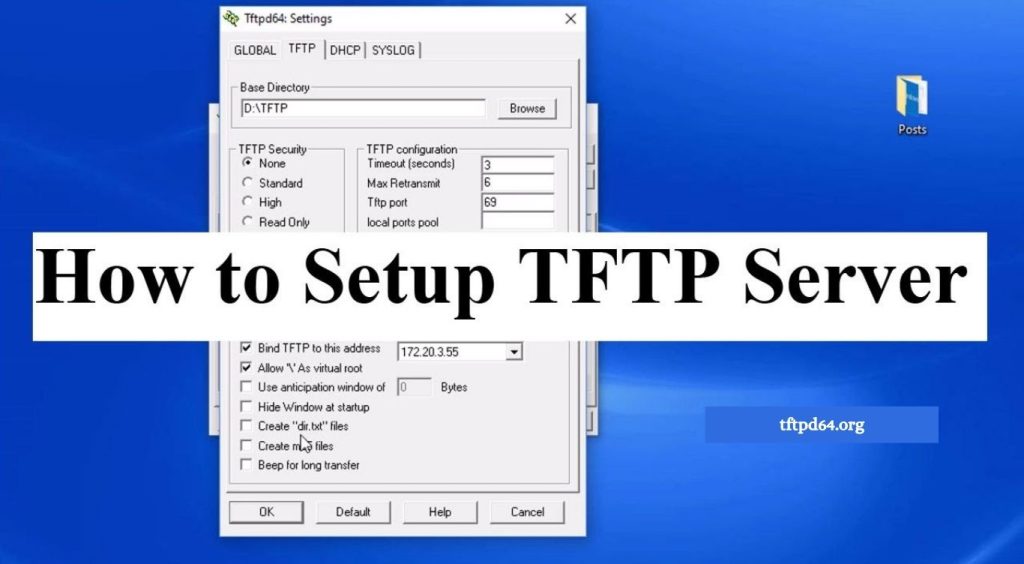
TFTPD64 is a lightweight and powerful network utility designed to help users set up a TFTP server quickly on Windows systems. It is widely used by network administrators, IT professionals, and developers for transferring configuration files, firmware updates, boot files, and other data between network devices and computers. Its simple interface, small size, and reliable performance make it a popular choice for managing TFTP operations.
Using TFTPD64 as a TFTP server allows users to create a central location for file transfers across a local network. Whether you need to configure routers, update switches, install network devices, or transfer files during troubleshooting, TFTPD64 provides an easy solution without requiring complex server configurations. This guide explains how to use TFTPD64 as a TFTP server and configure it properly for smooth file transfer operations.
What Is TFTPD64?
TFTPD64 is a free networking tool developed for Windows that combines multiple server features, including TFTP, DHCP, DNS, SNTP, and Syslog services. The TFTP feature allows devices to upload or download files through the Trivial File Transfer Protocol, which is commonly used in networking environments.
Read More: How to install TFTPD64 on Windows?
Unlike traditional file transfer methods, TFTP does not require user authentication, making it suitable for internal network operations where speed and simplicity are important. Network equipment such as routers, switches, IP phones, and embedded devices often rely on TFTP servers for firmware upgrades and configuration management.
Installing TFTPD64 on Windows
To use TFTPD64 as a TFTP server, the first step is to download and install the application on a Windows computer. After installation, launch the program with administrator privileges to ensure proper network access and avoid permission-related issues.
Once TFTPD64 opens, the main interface displays different service options along with configuration settings. The application automatically detects available network interfaces, allowing users to select the correct IP address for communication with connected devices.
Configuring TFTPD64 as a TFTP Server
The TFTP server setup begins by selecting the TFTP option from the TFTPD64 interface. The application requires a root directory where transferred files will be stored. This directory acts as the main location from which network devices can download files or upload data.
Choose a dedicated folder on the computer and set it as the TFTP directory. Keeping files organized in a separate folder helps prevent confusion during file transfers and makes troubleshooting easier. After selecting the directory, confirm that the correct network interface IP address is active.
The server should now be ready to accept TFTP requests from compatible devices on the same network. Make sure Windows Firewall or any security software allows TFTPD64 network communication, as blocked connections can prevent successful transfers.
Testing the TFTPD64 TFTP Server
Before using TFTPD64 with network hardware, testing the server connection is recommended. A simple test can be performed by connecting another computer or network device to the same network and attempting a file transfer.
When a device requests a file from the TFTP server, TFTPD64 displays activity logs showing connection details, file requests, and transfer status. These logs help identify connection problems and confirm whether the server is working correctly.
If the transfer fails, check the IP address settings, firewall permissions, network connectivity, and file location. Most TFTP connection issues are caused by incorrect configuration rather than problems with the TFTPD64 application itself.
Using TFTPD64 for Network Device Configuration
Many network administrators use TFTPD64 for managing firmware updates and configuration backups. Devices such as routers and switches can connect to the server to download updated firmware files or upload configuration backups.
During network maintenance, TFTPD64 provides a convenient method for transferring files without using external storage devices. It improves workflow efficiency and reduces the time required for repetitive configuration tasks.
For enterprise environments, administrators often keep TFTPD64 on a dedicated maintenance computer to provide quick access to required files whenever network devices need updates or recovery procedures.
Common TFTPD64 TFTP Server Issues
Although TFTPD64 is easy to use, some configuration problems may affect file transfers. Incorrect network settings, blocked ports, missing files, or firewall restrictions can stop communication between the server and client devices.
Ensuring that both the server and client are connected to the same network segment is important for reliable operation. Checking TFTPD64 logs also provides valuable information about failed requests and connection errors.
Running the application with administrator permissions and maintaining correct folder permissions can improve server stability and prevent unnecessary transfer failures.
Benefits of Using TFTPD64 as a TFTP Server
TFTPD64 provides a simple way to manage TFTP services without installing complex server software. Its lightweight design allows it to run efficiently on most Windows computers while providing essential networking features.
The application is especially useful for IT teams that need a fast solution for firmware updates, device recovery, configuration transfers, and network troubleshooting. Its user-friendly interface makes it accessible for beginners while still offering useful features for experienced administrators.
Conclusion
Using TFTPD64 as a TFTP server is a practical solution for transferring files between computers and network devices. With a simple installation process, easy configuration options, and helpful monitoring features, TFTPD64 makes TFTP management more convenient for both personal and professional use.