
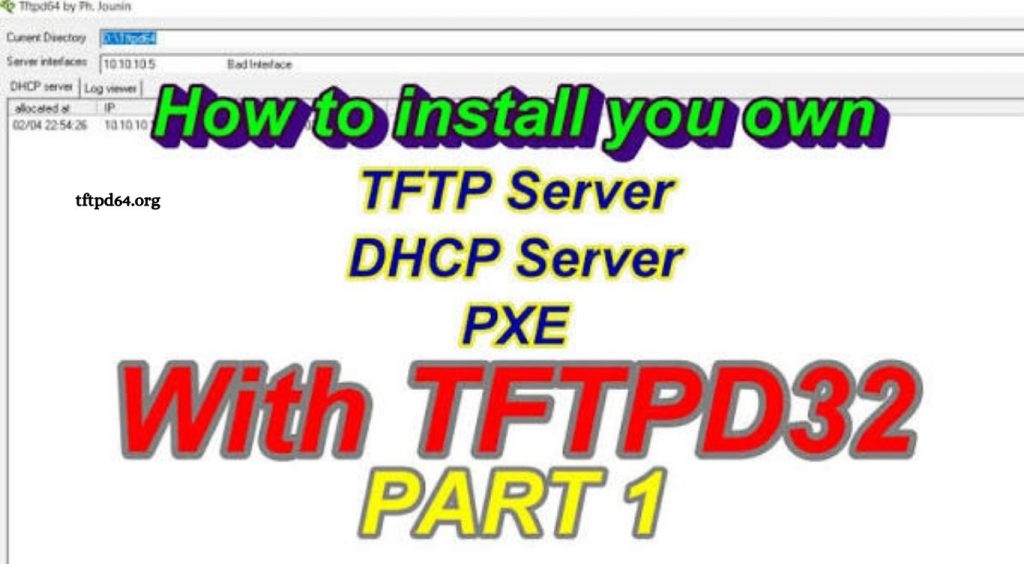
TFTPD64 is a lightweight and powerful network utility designed for Windows users who need reliable TFTP, DHCP, DNS, and Syslog services in one simple application. Network administrators, IT professionals, and system engineers often use TFTPD64 for firmware updates, device configuration, file transfers, and network troubleshooting. Its compact design and easy setup process make it a popular choice for managing network devices without requiring complex server software.
Installing TFTPD64 on Windows allows users to create a local TFTP server that can communicate with routers, switches, IP cameras, embedded devices, and other network equipment. This guide explains how to install TFTPD64 on Windows, configure the required settings, and start using the application efficiently while keeping the setup process simple for beginners and experienced users.
What Is TFTPD64?
TFTPD64 is a free Windows-based network server application developed to provide multiple network services through a single interface. The software includes TFTP server functionality along with DHCP server, DNS server, Syslog server, and network monitoring features. It is commonly used in professional environments where quick file transfers and device management are required.
Read More: How do I download TFTPD64 for Windows?
The TFTP service included in TFTPD64 allows users to transfer files between a computer and network devices that support the Trivial File Transfer Protocol. Many networking devices use TFTP for uploading firmware, downloading configuration files, or restoring system settings.
System Requirements for TFTPD64 Installation
Before installing TFTPD64 on Windows, ensure the computer has a compatible Windows operating system and an active network connection. The application requires minimal system resources, making it suitable for older computers as well as modern systems.
Users should also confirm that Windows Firewall or security software does not block TFTPD64 communication. Proper firewall configuration helps ensure successful connections between the server and connected network devices.
How to Download TFTPD64 on Windows
The first step is downloading TFTPD64 from a trusted source. Visit the official TFTPD64 website or a reliable software distribution platform to obtain the latest version. Choose the correct version according to the Windows system architecture, such as 32-bit or 64-bit.
After downloading the installation package, locate the setup file in the Windows download folder. Verify that the file is complete before starting the installation process to avoid errors during setup.
Installing TFTPD64 on Windows
Open the TFTPD64 setup file by double-clicking it. Windows may display a security confirmation message asking for permission to run the installer. Approve the request to continue with the installation.
Follow the installation instructions displayed on the screen. Select the preferred installation location and allow the setup wizard to copy the necessary files to the computer. Once the installation process finishes, launch TFTPD64 from the desktop shortcut or the Windows Start menu.
The application opens with a simple interface containing different service options and configuration settings. No complicated installation steps are required, allowing users to quickly prepare the software for network operations.
Configuring TFTPD64 After Installation
After opening TFTPD64, configure the basic settings before starting file transfers. Select the network interface connected to the devices that will communicate with the TFTP server. Choosing the correct network adapter ensures that TFTPD64 listens on the appropriate connection.
The base directory setting defines the folder where files are stored for TFTP transfers. Create or select a dedicated folder containing firmware files, configuration backups, or other resources required by connected devices.
Enable the TFTP server option from the TFTPD64 settings. Additional options such as security restrictions, transfer modes, and logging features can be adjusted based on network requirements.
Testing TFTPD64 TFTP Server
After completing the configuration, test the TFTP server to confirm that it is working correctly. Place a test file inside the selected TFTP directory and attempt to access it from a compatible network device or another computer connected to the same network.
The TFTPD64 interface displays transfer activity, allowing users to monitor successful connections and identify possible issues. If the transfer fails, check network settings, firewall permissions, IP addresses, and folder permissions.
Common TFTPD64 Installation Issues
Some users may experience connection problems after installing TFTPD64 on Windows. Firewall restrictions are one of the most common causes because Windows security settings can block incoming and outgoing network communication.
Incorrect IP configuration can also prevent devices from connecting to the TFTP server. Make sure the computer and connected devices are using compatible network addresses and are located within the same network range.
Permission problems may occur when TFTPD64 cannot access the selected file directory. Running the application with administrator privileges or selecting a suitable folder location can resolve these issues.
Benefits of Using TFTPD64 on Windows
TFTPD64 provides a simple solution for managing network file transfers without installing large server platforms. Its small size, easy configuration, and multiple built-in services make it valuable for network maintenance tasks.
The software helps professionals save time when updating device firmware, managing configurations, and diagnosing network problems. Its user-friendly interface allows beginners to perform basic TFTP operations while offering advanced features for experienced administrators.
Conclusion
Installing TFTPD64 on Windows is a straightforward process that enables users to manage TFTP services and other network tools from a single application. With proper installation, configuration, and network settings, TFTPD64 can provide reliable file transfer support for various devices and professional networking environments.