
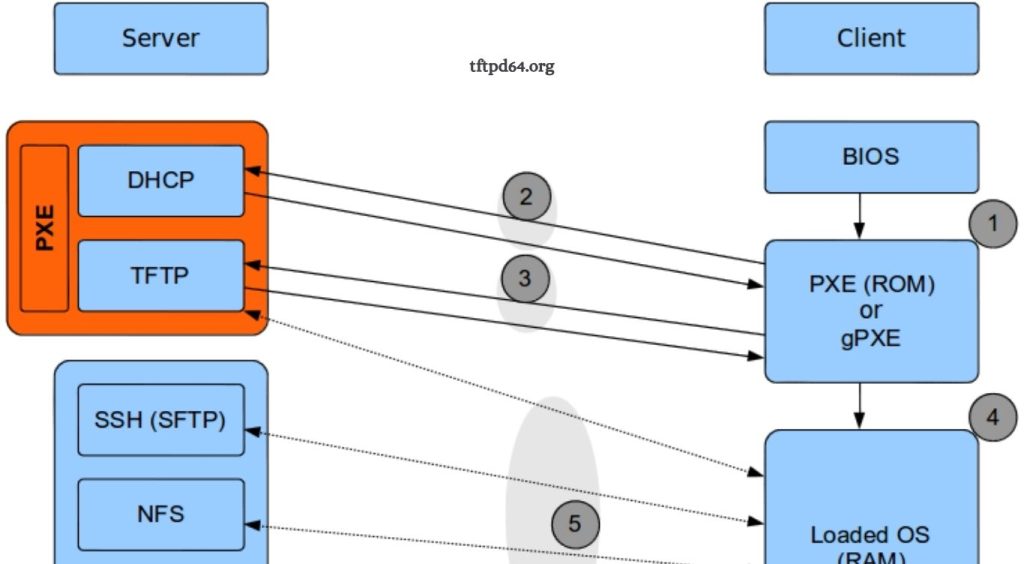
PXE boot is a powerful network-based installation method that allows computers to start and load operating systems or deployment files without requiring local storage media such as USB drives or DVDs. Businesses, system administrators, and IT professionals use PXE boot to simplify operating system deployment, automate maintenance tasks, and manage multiple computers efficiently through a centralized network environment.
TFTPD64 provides a lightweight and user-friendly solution for creating a PXE boot server on Windows systems. With built-in TFTP, DHCP, and network service features, TFTPD64 helps administrators configure a boot environment quickly. This guide explains how to set up PXE boot using TFTPD64 with a simple approach that makes the process easy to understand for beginners and experienced users.
Understanding PXE Boot and TFTPD64
PXE, also known as Preboot Execution Environment, allows a computer to boot directly from a network connection. During startup, the client machine communicates with a PXE server to receive network configuration details, download required boot files, and launch an operating system installer or recovery environment.
Read More: How to use TFTPD64 as a TFTP server?
TFTPD64 is a popular Windows-based networking utility that combines multiple services required for PXE deployment. It includes a TFTP server for transferring boot files, a DHCP server for assigning IP addresses, and additional networking tools that support system administration tasks. Using TFTPD64 eliminates the need for complex server configurations when creating a small- or medium-scale PXE boot environment.
Preparing the PXE Boot Environment
Before configuring TFTPD64, prepare a Windows computer that will act as the PXE server. The system should have a stable network connection and a fixed IP address to ensure client computers can locate the server consistently. A wired network connection is recommended because PXE boot depends on reliable communication between the server and client devices.
Download and install TFTPD64 on the server computer. After installation, create a dedicated folder that will store PXE boot files. This folder becomes the root directory for the TFTP server and contains essential files required during the boot process, including boot loaders, configuration files, and operating system deployment resources.
Configuring TFTPD64 for PXE Boot
Open TFTPD64 and select the network interface connected to the PXE client devices. Configure the TFTP server directory by selecting the folder containing the PXE boot files. This allows client machines to access the required files during startup.
The DHCP settings inside TFTPD64 need proper configuration because PXE clients require network information before downloading boot files. Enable the DHCP server option and define a suitable IP address range for client machines. Configure the gateway, subnet mask, and boot file name according to the network environment and PXE requirements.
The boot file name is one of the most important settings in PXE configuration because it tells the client computer which file to download after receiving an IP address. For BIOS-based systems, common boot files include PXE loaders such as pxelinux.0. For UEFI-based systems, different boot files may be required depending on the operating system deployment method.
Adding PXE Boot Files
After configuring TFTPD64, copy the required PXE boot files into the TFTP root directory. These files depend on the operating system or deployment platform being used. For example, Windows deployment environments may require Windows PE files, while Linux installations may use network boot files provided by distributions.
The PXE configuration file controls how the client computer behaves after connecting to the server. It can define installation options, boot menus, recovery tools, or automated deployment settings. Proper file organization helps prevent errors and makes future PXE management easier.
Testing PXE Boot Configuration
After completing the TFTPD64 configuration, test the setup using a client computer connected to the same network. Enter the system BIOS or UEFI settings and enable network boot or PXE boot as the primary boot option.
When the client starts, it should receive an IP address from the TFTPD64 DHCP service and begin downloading the required boot files from the TFTP server. If the process works correctly, the system will display the PXE boot menu or start the selected installation environment.
If the client fails to boot, check common issues such as incorrect network settings, blocked firewall ports, missing boot files, or incorrect boot file names. Reviewing TFTPD64 logs can help identify communication problems between the server and client devices.
Common Uses of PXE Boot with TFTPD64
PXE boot using TFTPD64 is commonly used for operating system installation, computer recovery, hardware testing, and large-scale system deployment. IT teams can save significant time by installing software on multiple computers without manually preparing installation media for each device.
Educational institutions, small businesses, and technical support teams often use PXE environments because they provide a simple way to manage multiple computers from one central location. TFTPD64 makes this process accessible without requiring advanced server infrastructure.
Benefits of Using TFTPD64 for PXE Boot
TFTPD64 offers a convenient way to create a PXE boot server because it combines essential network services in one application. Its simple interface allows administrators to configure network boot environments without installing complicated server platforms.
The tool also supports quick troubleshooting through built-in monitoring features. Administrators can view client requests, file transfers, and network activity to identify configuration problems during PXE operations.
Conclusion
Setting up PXE boot using TFTPD64 provides an efficient method for managing computer installations and network-based deployments. By configuring DHCP, preparing TFTP files, and setting up proper boot parameters, administrators can create a reliable PXE environment with minimal effort.